
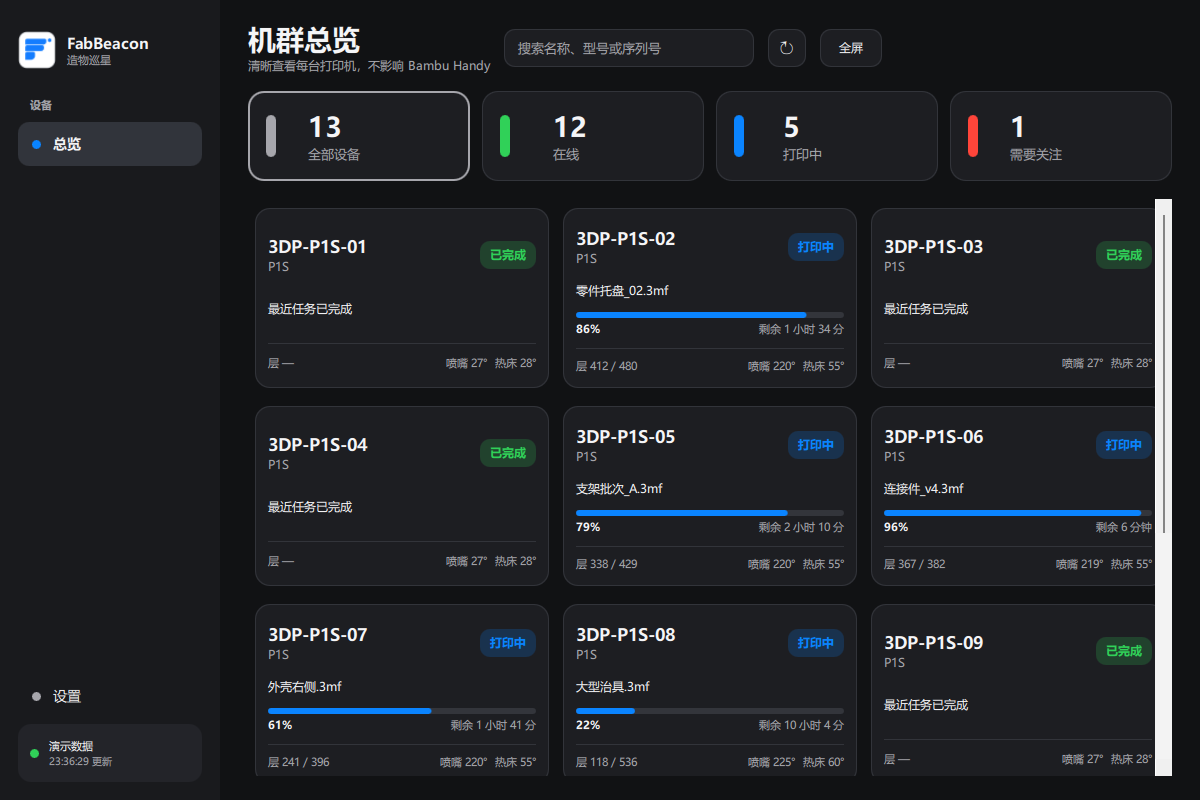
When several printers are running, checking each device separately soon gets repetitive. FabBeacon puts their status on one Windows screen: what is printing, how far along it is and which devices need attention. It reads status through Bambu cloud and leaves printer control in your existing tools.
What you need before installing
- A 64-bit Windows computer with an internet connection.
- A Bambu account with printers already bound to it. Choose the corresponding cloud region when connecting.
- A separate FabBeacon product account, created or accessed with your email inside the app. This handles product sign-in, membership and billing.
The Windows app must be running and the computer awake to receive new status. FabBeacon does not offer a phone dashboard, camera feed, LAN-only connection or printer controls.
Set up your printer dashboard
- Get the official installer. Open the FabBeacon Windows download page, download Setup from GitHub Releases and compare its SHA-256 with the published value. The v0.5.2 installer is not code-signed; Windows may show an unknown publisher or SmartScreen warning. Stop if the source or checksum does not match.
- Install and sign in to FabBeacon. Choose your installation folder and shortcuts, then open the app. Create or sign in to the FabBeacon product account with your email. Free still requires this sign-in.
- Connect your Bambu account. With no saved Bambu connection, the app opens the mainland-China phone/SMS flow. Switch the region if your account uses another Bambu cloud region, then complete the required sign-in yourself.
- Check the overview. Wait for your bound printers to appear, then use search, filters or full-screen monitoring. Open a printer's details to check its last update time before relying on a status that may be old.
Your FabBeacon product account and Bambu account do different jobs. Bambu credentials remain on your Windows computer; they are not sent to the FabBeacon membership backend. Product-account and billing data are handled online as described in the privacy notice.
How many printers does Free include?
Free covers one locally saved Bambu connection and every printer bound to that account. It includes the basic overview, search, filters, printer details and full-screen monitoring. The limit is one connection, not one printer.
Plus activates all validated local Bambu connections and adds the farm matrix, device groups, alert center, error help, local history, maintenance tasks and production reports. It costs US$2.99 per month or US$24.99 per year, renews automatically and has no free trial. Start by checking whether the Free view solves your daily monitoring need. See the cancellation and refund policy before subscribing.
Three things to check before leaving the print room
- Check whether the status is fresh. Open printer details and look at the last update time. A stale snapshot, a printer that has not reported yet and an explicitly offline printer are different situations. An old percentage is not proof the print is still progressing.
- Look at work still running. Review progress and remaining time, then investigate anything unexpected in your usual printer tools or at the machine. This dashboard cannot pause a print for you.
- Check finished work in person. A completed print state does not mean someone has removed the part, cleared the plate or delivered the order. That still needs a person.
Common questions
Why is my printer list empty?
First check that you used the Bambu account and cloud region where those printers are bound. Check the same account in Bambu Handy. If it has the printers but FabBeacon does not, record what you see and contact support; an empty list alone does not establish the cause.
Why does local print history have gaps?
Plus history and production reports describe what FabBeacon observed while monitoring. Sleep, an app exit or a lost connection can leave gaps. The app does not backfill a complete official Bambu history, and a recorded task count is not a count of physical parts.
Can it pause, cancel or start a print?
No. FabBeacon is a read-only monitor. Use Bambu Handy or your normal printing tools for control.
Can I open this dashboard on my phone or sync it to another PC?
The current product is a Windows desktop app. It does not provide a remote web dashboard, cross-PC printer-record sync or team seats. Maintenance tasks and operating records stay on the current computer.
How do I report a connection problem?
In the app, open Settings → Diagnostics & feedback, export redacted diagnostics and review the file before sharing it. Email [email protected] with the app version, Windows environment, what happened and when. Never send passwords, verification codes, access tokens or full device serial numbers.
Download FabBeacon for Windows · Troubleshoot an empty list or stale status · See how Bambu Handy and FabBeacon work together · Read the v0.5.2 release notes